Admin Configuration Page
A configuration page may needed to configure a plugin's settings and/or other features.
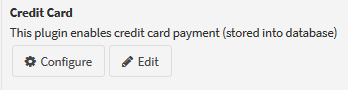
You can find the button to access a plugin's configuration page in Admin > Configuration > Plugins > Local Plugins under the Plugin Info column
1. Create View
1. If you have not already, Add a Views folder into your plugin's root directory.
2. Create a subfolder called [PluginName].
3. Create a view named Configure.cshtml
2. Register Route
see Implement IMisc Plugin Members from the Create the main Plugin Class file slides for instructions on how to add the route to the plugin controller
3. Create Routes In Controller
1. Open your Controllers/[PluginName]Controller.cs file.
2. Dependency inject any ISettingService, ILocalizationService, or other settings or services that you need into the controller's constructor
private readonly [PluginName]Settings _[PluginName]Settings;
private readonly ISettingService _settingService;
private readonly ILocalizationService _localizationService;

public GuestAccountMergeController(
    [PluginName]Settings [PluginName]Settings,
    ISettingService settingService,
    ILocalizationService localizationService)
{
    _[PluginName]Settings = [PluginName]Settings;
    _settingService = settingService;
    _localizationService = localizationService;
}
3. Add a route called Configure and return whatever is relevant to your Configuration view.
[ChildActionOnly]
public ActionResult Configure()
{
    var model = new [ConfigurationViewModelName]();
    model.Enabled = _[PluginName]Settings.Enabled;

    return View(model);
}
4. Add another route for posting back changes from your view as appropriate
[ChildActionOnly]
[HttpPost, ActionName("Configure")]
[FormValueRequired("save")]
public ActionResult Configure([ConfigurationViewModelName] model)
{
    if (!ModelState.IsValid)
    {
        return Configure();
    }

    _[PluginName]Settings.Enabled = model.Enabled;
    _settingService.SaveSetting(_[PluginName]Settings);
    SuccessNotification(_localizationService.GetResource("Admin.Plugins.Saved"));

    return Configure();
}
Documentation and Notes by Lee Jones July-2017